

How to Sync Smart Devices From Different Brands
Table of Contents
- Check Device Compatibility Before You Start
- Choose a Central Smart Home Hub or Platform
- Connect Third-Party Smart Home Devices to Google Home
- Sync Smart Home Devices That Work With Alexa
- Control Smart Home Devices From One App
- Troubleshoot Smart Home Devices Not Connecting to Wi-Fi
- Sync Smart Devices From Different Brands With Matter and Thread
- Frequently Asked Questions
Last Updated: October 11, 2026
Check Device Compatibility Before You Start
Before you buy a new smart device or attempt to sync anything, learn how to sync smart devices from different brands by verifying that it works with your existing ecosystem. Not every smart device plays nicely with every platform.
Start by identifying what you already own. Do you have Google Home devices? Alexa speakers? Apple HomeKit? Write down the brands and models. Then check the manufacturer's website for each new device you're considering.
Look for compatibility badges or statements like "Works with Google Home," "Compatible with Alexa," or "Supports Apple HomeKit." If a device lists none of these, it likely requires a proprietary app and won't sync with your other devices.
Understand what compatibility actually means. A device labeled "Works with Google Home" typically means it can be discovered and controlled through the Google Home app, but not all features may be available.
Verify wireless protocol and hub requirements. Most smart devices connect via Wi-Fi, but some use Zigbee, Z-Wave, or Thread, protocols that require a compatible hub.
Check platform-specific limitations. Each ecosystem has different feature support:
- Google Home: Supports hundreds of third-party devices but some advanced features (like complex automations or device-specific settings) may only be available in the manufacturer's native app.
- Alexa: Offers the widest device compatibility but requires manufacturer Skills for some brands. Some devices appear in Alexa only after you enable their Skill in the Alexa Skills store.
- Apple HomeKit: Has the strictest compatibility requirements. Devices must be HomeKit-certified, which means they've passed Apple's security and interoperability testing. This limits the selection but ensures stronger privacy protections.
Look up the device on compatibility databases. Before purchasing, search for the device model on the official compatibility pages:
- Google Home: Visit support.google.com and search "compatible devices"
- Alexa: Check the Alexa Skills store and the device manufacturer's Alexa support page
- Apple HomeKit: Visit apple.com/home and search the Works with HomeKit directory
These pages show real-time compatibility and often include user reviews flagging connection issues.
Understand syncing limitations. "Syncing" devices from different brands doesn't mean they share data or control each other directly. It means they all report to the same central app (Google Home, Alexa, or HomeKit). A Philips Hue light and a LIFX light can both appear in Google Home, but they won't automatically coordinate with each other unless you create an automation that triggers both. If you need devices to work together seamlessly, prioritize devices from the same manufacturer or those that support Matter, which enables true cross-platform interoperability.
Choose a Central Smart Home Hub or Platform
You need one central platform to control everything. Without it, you're stuck opening multiple apps. The major platforms are Google Home, Amazon Alexa, and Apple HomeKit. Each one works as your command center for how to sync smart devices from different brands.
Google Home works best if you use Android devices and Google services. Alexa dominates if you already own Echo speakers. Apple HomeKit is the choice for iPhone and iPad users who prioritize privacy. Pick the platform you already use most, that's your hub.
Your hub becomes the central dashboard where all devices appear. Once you've chosen, you'll add third-party devices to it one by one. The hub communicates with each device and lets you control everything from a single app. This is what "syncing" really means: getting your devices to talk to the same central system.
Connect Third-Party Smart Home Devices to Google Home
Google Home connects to hundreds of third-party devices. To add them, open the Google Home app and tap the plus icon to add a device. Select "Set up device" and choose "Works with Google." This launches a setup flow for compatible devices.
The app will search for devices on your network. If it finds yours, select it and follow the prompts. Most devices ask you to create an account or sign in with an existing one. You may need to link your manufacturer account (like Philips for smart bulbs or Nest for thermostats). Once linked, the device appears in your Google Home app with a tile you can control.
Some devices require you to put them in pairing mode first. Check the device manual for instructions. Usually you'll press a button or hold it for several seconds until a light blinks. Then return to the Google Home app and complete the setup.
Sync Smart Home Devices That Work With Alexa
Amazon Alexa connects to even more third-party devices than Google. Open the Alexa app and go to "Devices." Tap the plus icon and select "Add Device." Choose your device type (light, plug, thermostat, etc.) and Alexa searches your network.
Select your device when it appears. You'll be prompted to sign in to the manufacturer's account or create one. This account linking is essential, it tells Alexa which devices belong to you. Once you authorize the connection, the device syncs to your Alexa app.
Some devices appear in Alexa automatically through "Skills," which are integrations that manufacturers maintain. If your device doesn't show up in the manual setup flow, search for its brand name in the Alexa Skills store. Enable the skill and follow the login steps. The device then appears in your device list.
Control Smart Home Devices From One App
After syncing devices from different brands, they all live in one app. Google Home shows device tiles organized by room. Alexa displays them in a similar grid. Tap any tile to control that device, turn lights on or off, adjust thermostats, lock doors.
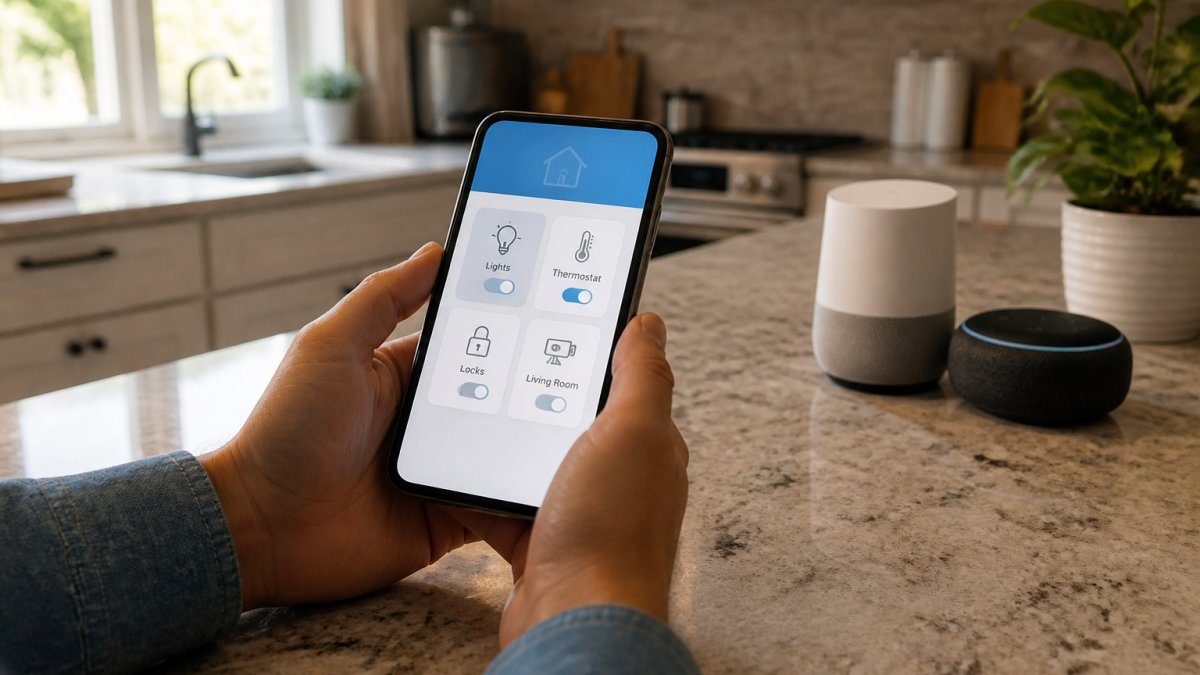
The real power comes from automations and routines. Create a "Good Morning" routine that turns on lights, adjusts the thermostat, and plays news. Set automations that trigger when you leave home, lock the door, turn off lights, adjust the AC. One app controls everything, regardless of which manufacturer made each device.
Troubleshoot Smart Home Devices Not Connecting to Wi-Fi
Devices that won't connect to Wi-Fi are the biggest headache. Start by checking your router. Is it on? Can other devices connect? If your phone connects fine but the smart device doesn't, the problem is usually with the device, not your network.
Restart the device. Unplug it for 30 seconds, then plug it back in. Wait two minutes for it to boot up. Try connecting again. If that doesn't work, factory reset it. Most devices have a reset button you hold for 10 seconds. This erases all settings and returns it to factory defaults.
Check the device's Wi-Fi band. Older smart devices only connect to 2.4 GHz Wi-Fi, not 5 GHz. If your router broadcasts both, the device might be trying to connect to the wrong one. Log into your router settings and separate the bands into different network names.
Distance matters too. If the device is far from your router, move it closer temporarily to complete setup. Once it connects, you can move it back. Walls and metal objects weaken Wi-Fi signals, so position it with a clear line of sight to the router if possible.
Sync Smart Devices From Different Brands With Matter and Thread
Matter is a new standard that makes syncing smart devices from different brands easier. It's a universal language devices use to communicate with each other.
How Matter differs from traditional syncing. Normally, when you add a Philips Hue light to Google Home, Google maintains a direct connection to Philips's servers.
What you need to use Matter. To control Matter devices, you need a Matter hub, a device that acts as a bridge between your Matter devices and your Wi-Fi network. The major hubs are:
- Google Nest Hub (2nd generation or later): Works with Google Home, Alexa, and HomeKit. Supports both Matter and Thread.
- Amazon Echo Hub (4th generation or later): Works with Alexa, Google Home, and HomeKit. Supports Matter and Thread.
- Apple TV 4K (3rd generation or later): Works with HomeKit, Alexa, and Google Home. Supports Matter and Thread.
- Samsung SmartThings Hub: Works with Alexa and Google Home. Supports Matter.
If you don't already own one of these hubs, you'll need to buy one to use Matter devices.
Thread and mesh networking. Thread is a wireless protocol that works alongside Matter.
Thread requires a Thread border router, typically the same device that serves as your Matter hub. Google Nest Hub, Amazon Echo Hub, and Apple TV 4K all support Thread.
Current Matter device availability. As of late 2026, Matter support is growing but still limited compared to traditional integrations. Devices with Matter support include:
- Smart lights (Philips Hue, LIFX, Nanoleaf, Eve)
- Smart plugs and switches (Eve, Nanoleaf, Meross)
- Smart locks (Level Lock, Eve)
- Thermostats (Eve, some Ecobee models)
- Cameras (Eve, Logitech Circle View)
- Sensors (Eve, Aqara)
Not all models from these manufacturers support Matter, check the device packaging or manufacturer website for the Matter logo (a circle with three interlocking shapes).
How to set up a Matter device. The process is simpler than traditional syncing:
- Ensure your Matter hub is set up and connected to Wi-Fi.
- Put the Matter device into pairing mode (usually by pressing a button or holding it for several seconds until a light blinks).
- Open the app for your primary ecosystem (Google Home, Alexa, or HomeKit).
- Tap the plus icon to add a device and select "Set up new device" or "Add device."
- Scan the device's setup code (usually a QR code on the packaging or back of the device) or enter it manually.
- The device appears in your app and is automatically available in the other ecosystems without additional setup.
No account linking, no manufacturer Skills to enable, no separate logins required.
When to use Matter vs. traditional syncing. If you're building a new smart home from scratch and can afford a Matter hub, prioritize Matter devices.
Frequently Asked Questions
Can I control smart devices from different brands in one app?
Yes, if you use a central hub or platform. Google Home, Amazon Alexa, and Apple HomeKit each support third-party devices through their ecosystems. Once you add devices to your chosen platform, you can control them all from that single app. Some devices support multiple platforms, so you may also use manufacturer apps alongside your central hub for full control and automation options.
Do smart home devices need to use the same Wi-Fi network to sync?
Yes, most devices require connection to your home Wi-Fi network to sync and communicate. Your hub or platform acts as a bridge between your phone and the devices. Some newer devices support Thread, a mesh networking protocol that allows devices to relay signals through each other, reducing Wi-Fi dependency and improving reliability across your home.
What should I do if a device from another brand won't sync?
First, verify the device is compatible with your chosen platform (Google Home, Alexa, or HomeKit). Check that the device is in pairing mode and within range of your Wi-Fi or hub. Update the device firmware through its manufacturer app, then restart both the device and your hub. If the issue persists, remove the device and re-add it. Ensure your hub firmware is current, and check that you've granted the necessary permissions in your platform's app settings.
Can Matter-compatible devices work together across brands?
Yes. Matter is an open standard designed to allow devices from different manufacturers to work together seamlessly. Matter devices communicate directly without relying on manufacturer clouds, which improves reliability and privacy. You need a Matter-compatible hub (such as a newer Apple TV, Google Home, or Amazon Echo device) to use Matter devices. Once set up, Matter devices appear in your ecosystem and work alongside traditional Wi-Fi or Zigbee devices.